Ctrl+K
nextnanomat - Home nextnanomat - Home
  • User Guide
  • FAQs
  • Release Notes
  • Download nextnano software
  • All Documentation
  • nextnano support
  • nextnano website
  • User Guide
  • FAQs
  • Release Notes
  • Download nextnano software
  • All Documentation
  • nextnano support
  • nextnano website

Section Navigation

  • GUI tabs
    • Input
    • Template
    • Template (Beta)
    • Simulation
    • Output
  • Main menu functions
    • Create New Input File
    • Replace existing Tabs with Spaces
    • Replace IF with WHEN
    • Open Keyword Tree, Syntax Help
    • Add Directory Tree to Batch List
    • Softkill Selected Simulation
    • Check Simulations for Termination (beta)
    • Activate license
    • Convert nextnano³ Input File to nextnano++
    • Convert xml Input File to negf Input File
    • Clean Up Simulation Output Folder
    • Generate nextnanopy config file
    • Generate System Snapshot for Troubleshooting
  • Settings
    • Simulation
    • Executable for Windows and Linux
    • Material database
    • License
    • Editor/Input
    • View
    • Gnuplot export
    • Data export
    • Performance
    • Expert/Debugging
    • Custom executable
  • Export Functionalities
    • Exporting to ParaView
      • Setting Up nextnanomat
      • Direct Export
      • Exporting 2D Outputs with Python Scripts
    • Gnuplot export
      • How to export 1D plot files with Gnuplot
      • How to export 2D or 3D plot files with Gnuplot
      • How to optimze the looks of a Gnuplot graph
    • Export via python scripts
      • How to call custom python scripts directly from nextnanomat
    • Other
  • HTCondor
  • User Guide
  • Main menu functions

Main menu functions#

Drop down functions of main menu. Most functions are identical to the menu buttons of each tab page. Those which do not clone a button functionality will be described here.

  • File

  • Edit

  • Run

  • View

  • Tools

  • Help


File#

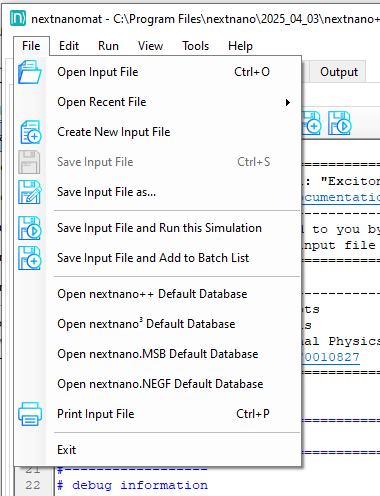
../../_images/MAINMENU_File.PNG

Figure 32 File main menu functions#

  • Create New Input File

Edit#

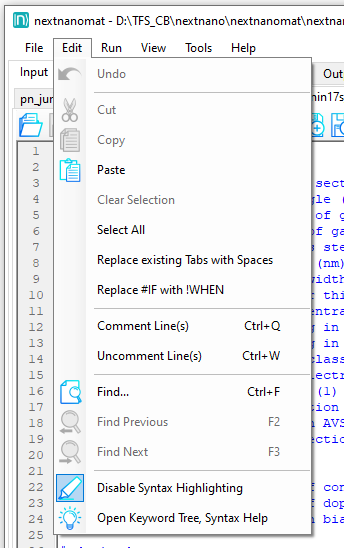
../../_images/MAINMENU_Edit.PNG

Figure 33 Edit main menu functions#

  • Replace existing Tabs with Spaces
  • Replace IF with WHEN
  • Open Keyword Tree, Syntax Help

Run#

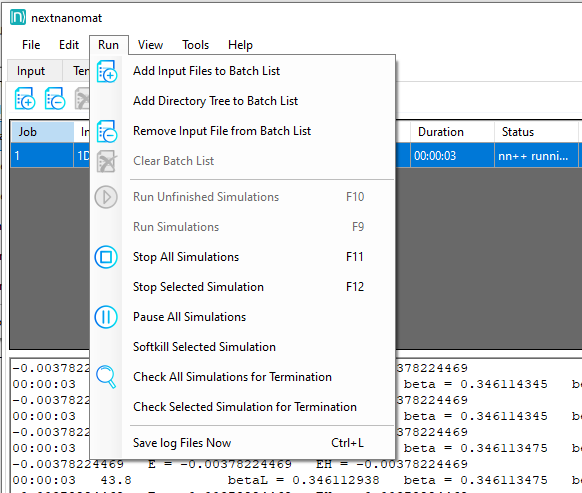
../../_images/MAINMENU_Run.PNG

Figure 35 Run main menu functions#

  • Add Directory Tree to Batch List
  • Softkill Selected Simulation
  • Check Simulations for Termination (beta)

View#

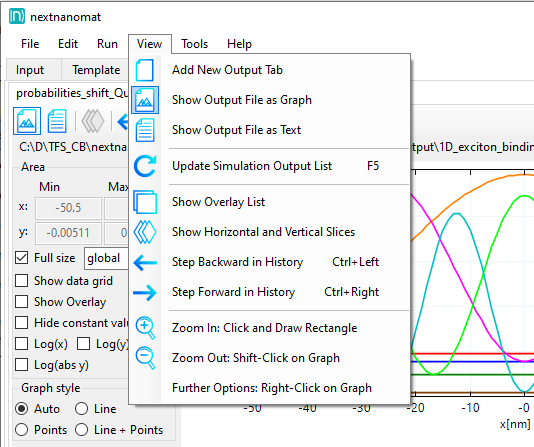
../../_images/MAINMENU_View.PNG

Figure 36 View main menu functions#

All View main menu functions are either self-explanatory or duplicate a button’s function of the Output tab. Please refer to the corresponding documentation.


Tools#
../../_images/MAINMENU_Tools.PNG

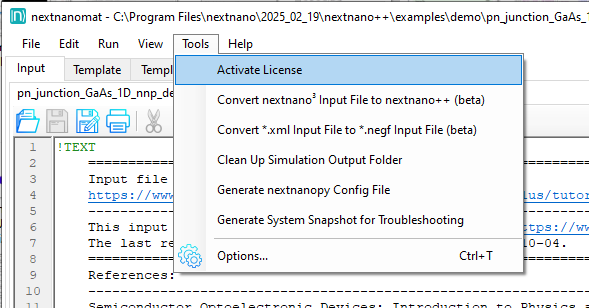
Figure 37 Tools main menu functions#

  • Activate license
  • Convert nextnano³ Input File to nextnano++
  • Convert xml Input File to negf Input File
  • Clean Up Simulation Output Folder
  • Generate nextnanopy config file
  • Generate System Snapshot for Troubleshooting

Help#

../../_images/MAINMENU_Help.PNG

Figure 39 Help main menu functions#

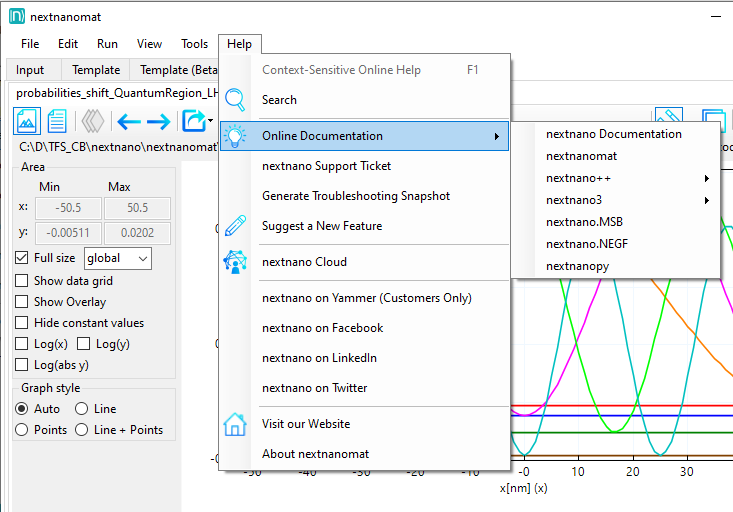
In the Help menu, information about the software and direct links to the nextnano online documentation of each simulation tool can be found. Furthermore, there are a couple of contact possibilities listed, from our customer support portal nextnano Help Center to our social media accounts. If you plan to contact support, the menu function Generate System Snapshot for Troubleshooting generates a text file which you can attach to your request.

previous

Output

next

Create New Input File

On this page
  • File
  • Edit
  • Run
  • View
  • Tools
  • Help
nextnano++ nextnano++ nextnano.NEGF nextnano.NEGF nextnanomat nextnanomat nextnano_optimizers nextnano_optimizers nextnanopy nextnanopy nextnano.MSB nextnano.MSB nextnano3 nextnano3

© Copyright 2026, nextnano GmbH.

Created using Sphinx 9.1.0.

Built with the PyData Sphinx Theme 0.20.0.