logo
nextnanomat (5.6.4.6) Logo
nextnano Documentation

Getting Started

  • GUI tabs
  • Main menu functions
    • File
      • Create New Input File
    • Edit
      • Replace existing Tabs with Spaces
      • Replace IF with WHEN
      • Open Keyword Tree, Syntax Help
    • Run
      • Add Directory Tree to Batch List
      • Softkill Selected Simulation
      • Check Simulations for Termination (beta)
    • View
    • Tools
      • Activate license
      • Convert nextnano³ Input File to nextnano++
      • Convert xml Input File to negf Input File
      • Clean Up Simulation Output Folder
      • Generate nextnanopy config file
      • Generate System Snapshot for Troubleshooting
    • Help

User Guide

  • Settings
  • Color maps
  • Export Functionalities
  • HTCondor
  • Release Notes
  • FAQs
nextnanomat (5.6.4.6)
  • Main menu functions
Previous Next

Main menu functions

Drop down functions of main menu. Most functions are identical to the menu buttons of each tab page. Those which do not clone a button functionality will be described here.

  • File

  • Edit

  • Run

  • View

  • Tools

  • Help


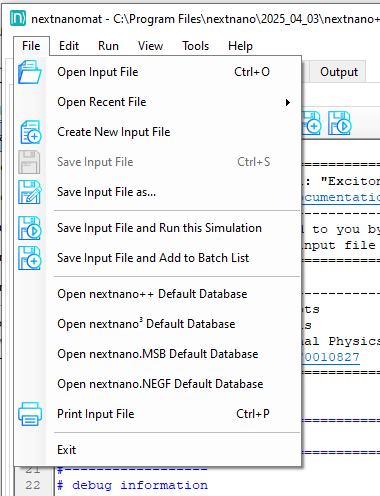
File

../_images/MAINMENU_File.PNG

Figure 32 File main menu functions

  • Create New Input File

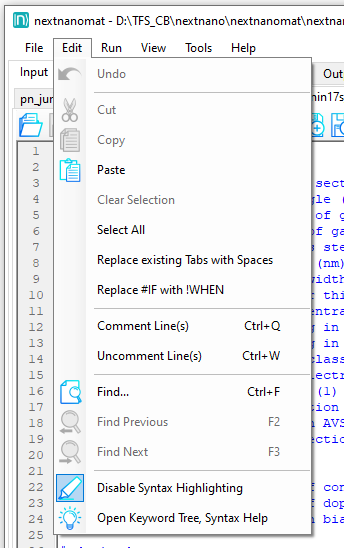
Edit

../_images/MAINMENU_Edit.PNG

Figure 33 Edit main menu functions

  • Replace existing Tabs with Spaces
  • Replace IF with WHEN
  • Open Keyword Tree, Syntax Help

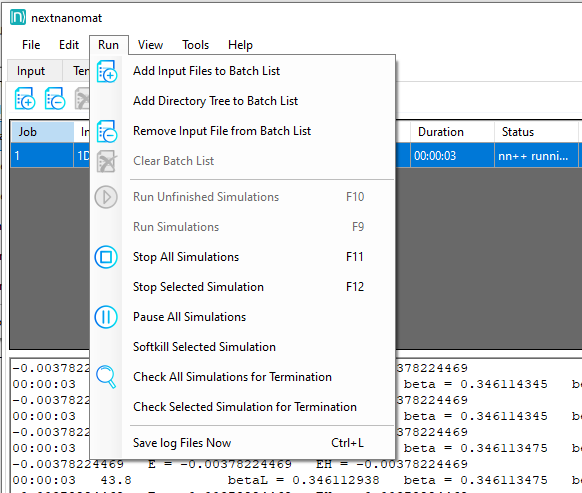
Run

../_images/MAINMENU_Run.PNG

Figure 35 Run main menu functions

  • Add Directory Tree to Batch List
  • Softkill Selected Simulation
  • Check Simulations for Termination (beta)

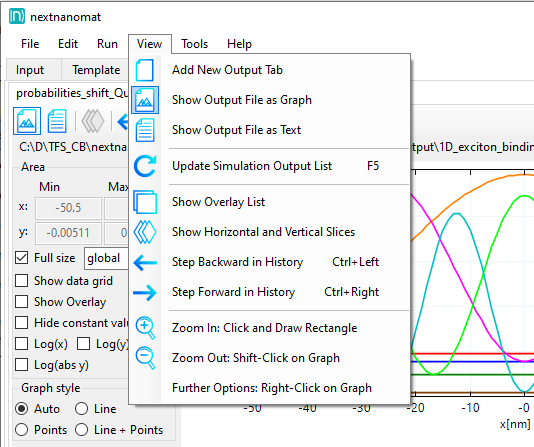
View

../_images/MAINMENU_View.PNG

Figure 36 View main menu functions

All View main menu functions are either self-explanatory or duplicate a button’s function of the Output tab. Please refer to the corresponding documentation.


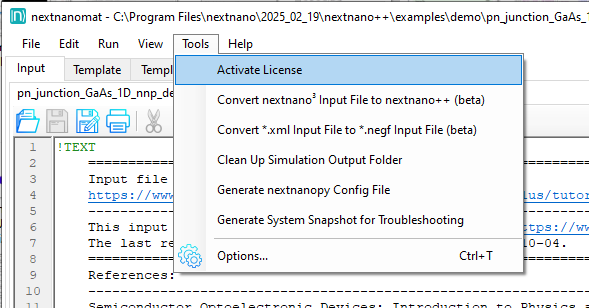
Tools

../_images/MAINMENU_Tools.PNG

Figure 37 Tools main menu functions

  • Activate license
  • Convert nextnano³ Input File to nextnano++
  • Convert xml Input File to negf Input File
  • Clean Up Simulation Output Folder
  • Generate nextnanopy config file
  • Generate System Snapshot for Troubleshooting

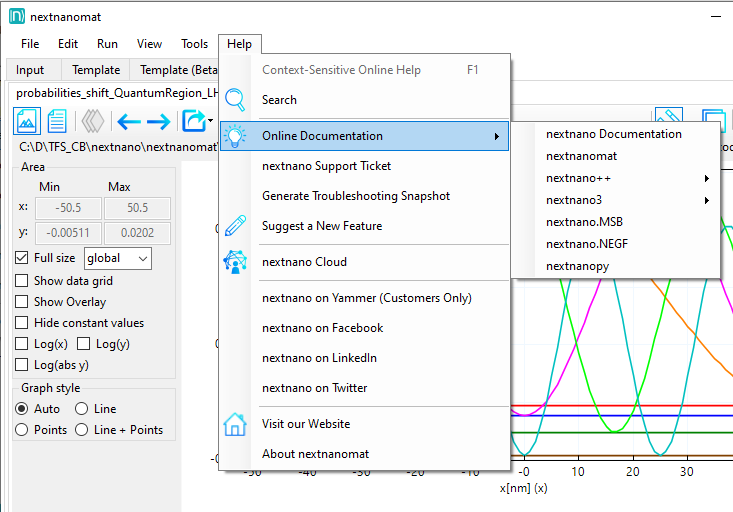
Help

../_images/MAINMENU_Help.PNG

Figure 39 Help main menu functions

In the Help menu, information about the software and direct links to the nextnano online documentation of each simulation tool can be found. Furthermore, there are a couple of contact possibilities listed, from our customer support portal nextnano Help Center to our social media accounts. If you plan to contact support, the menu function Generate System Snapshot for Troubleshooting generates a text file which you can attach to your request.

Previous Next

© Copyright 2026, nextnano GmbH.

Built with Sphinx using a theme provided by Read the Docs.